Bible_Connection
Bible Connection
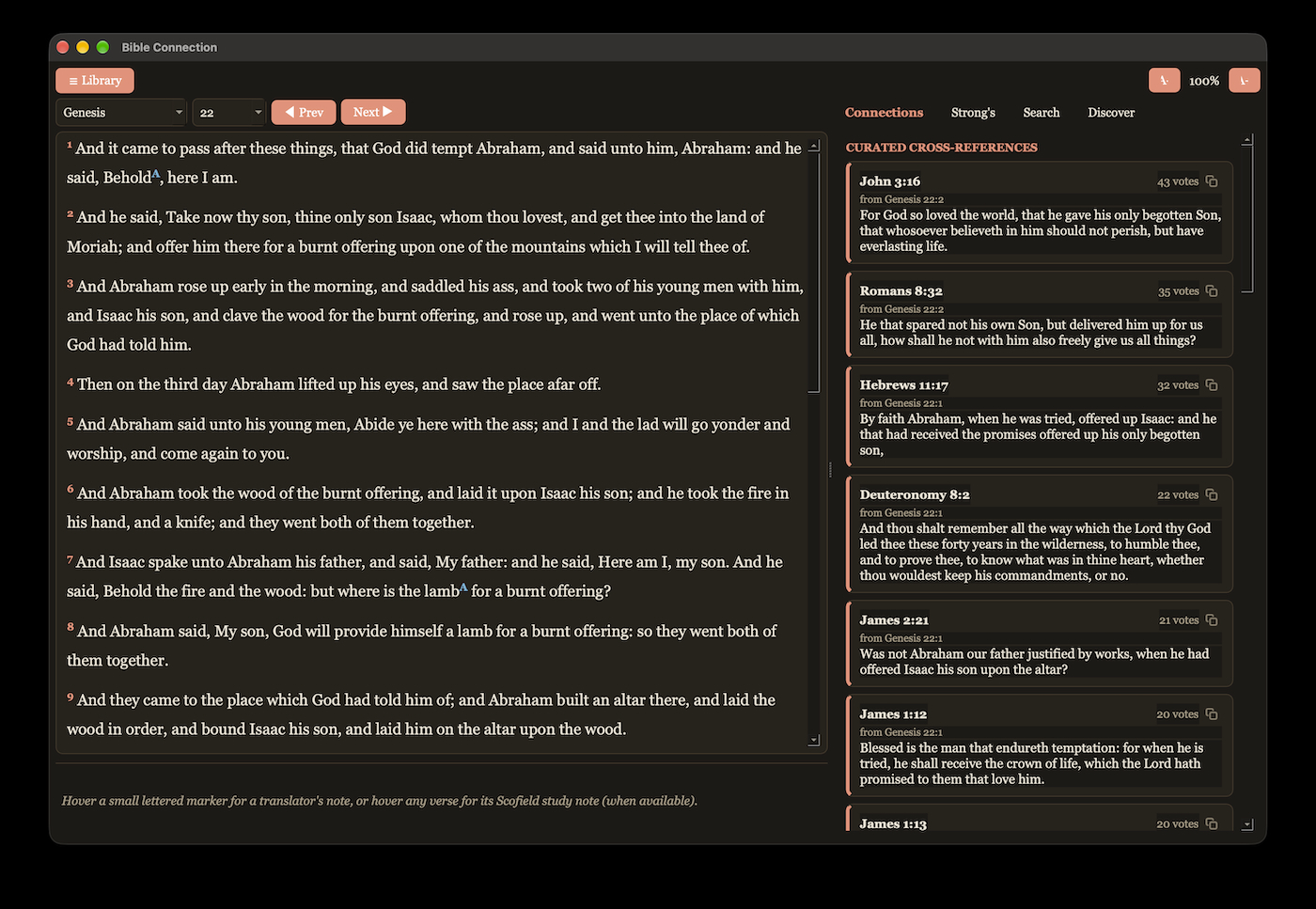
A KJV Bible reader that shows you how verses connect to each other as you read — cross-references, machine-learning-matched similar passages, red-letter text, the King James translators’ own footnotes, a 1917 study Bible’s notes, and a built-in Strong’s concordance for the original Hebrew and Greek words — all without leaving the page you’re on.
Getting started
There’s no server to start, no browser to open, and nothing to connect to — the Bible text and every connection between verses come built into the app. You need Python 3.10 or newer, on macOS, Windows or Linux.
Install with pipx (recommended)
pipx installs Bible Connection with everything
it needs, keeps it separate from anything else on your computer, and
gives you a bible-connection command to start it. First get pipx
itself, once:
- macOS:
brew install pipx(with Homebrew), thenpipx ensurepath - Windows:
py -m pip install --user pipx, thenpy -m pipx ensurepath - Linux: your distribution’s
pipxpackage (e.g.sudo apt install pipx), thenpipx ensurepath
Then open a new Terminal (or Command Prompt) window and run:
pipx install https://github.com/MrChillStorm/Bible_Connection/archive/main.zip
bible-connection
The install downloads a few hundred megabytes — the Bible library itself, and the toolkit that draws the window — and takes a few minutes the first time. The very first launch then spends a moment setting up the library. Later:
pipx upgrade bible-connection     # get the latest version
pipx uninstall bible-connection   # remove it (your reading history stays)
From a download (macOS)
If you’d rather not install anything beyond Python itself, download this project (the green Code button → Download ZIP, then unzip it), and:
Step 1 — one time only. Open Terminal (Applications → Utilities
→ Terminal), type cd (with a space after it, don’t press Return
yet), then drag the Bible_Connection folder from Finder into the
Terminal window — that fills in the correct path for you. Press
Return, then paste this and press Return again:
pip3 install -r requirements.txt
This installs the two code libraries the app needs (the toolkit that draws the window, and a small helper that finds the right folder for your reading history). If it answers that the environment is “externally managed” — Homebrew’s Python does that — use pipx above instead.
Step 2 — every time you want to read. Double-click Bible Connection (the app icon) in this folder. A window opens; that’s the app. The app has to stay in this folder, since it starts the code next to it.
(If macOS says it can’t verify the app the first time, right-click it → Open, then click Open again in the dialog that appears. That’s a standard one-time confirmation for any app that didn’t come from the App Store — not a sign anything’s wrong.)
If double-clicking doesn’t open anything, the packages from Step 1
probably aren’t installed yet — the app will tell you this in a dialog
and open Terminal for you. Just run the pip3 install command from
Step 1 again there — it’s safe to run more than once.
From a download (Windows and Linux)
In a Command Prompt or terminal inside the downloaded folder, once:
python -m pip install -r requirements.txt
and then, every time you want to read:
python -m bible_connection
(On Windows, py works in place of python.) Bible Connection is
built and tested on macOS; it’s plain Qt, so Windows and Linux should
work the same, but haven’t been tried — if anything behaves
differently than described here, that’s worth reporting.
What you can do in the app
Library. Opens to every book of the Bible, Old and New Testament side by side, grouped the traditional way (Law, History, Wisdom & Poetry, Major/Minor Prophets; Gospels, Acts, Paul’s Letters, General Letters, Revelation). Check a book off once you’ve read it — it gets a line through it as a reminder; this doesn’t affect your reading position. Click any book to open it.
The reader. It remembers exactly where you stopped in every book — come back days later and it opens right where you left off. Prev/Next moves a chapter at a time, crossing from one book into the next at the edges.
Jesus’s own words render in red; if a verse mixes narration with something He said, only the actual words He spoke turn red.
Some verses have small markers, or respond to hovering:
- Small lettered markers (A, B, …) are the King James translators’ own footnotes — mostly literal Hebrew/Greek renderings of a specific word or phrase. Hover one to read it in the bar under the text.
- Hovering anywhere on a verse — no marker needed — shows a study note from the 1917 Scofield Reference Bible, if that verse has one. These are usually about the whole verse rather than one word, which is why they don’t need a marker of their own; a footnote’s marker takes priority if you’re hovering it specifically.
Connections tab. Updates live as you scroll to show verses connected to whatever’s currently on screen — both connections people have drawn between passages for centuries, and ones a machine-learning model finds by comparing what verses mean, not just which words they share. Click one to jump there. Hover one first and the reading pane briefly scrolls to show exactly which verse it connects from, snapping back once you move your mouse away.
Strong’s tab. Every original Hebrew or Greek word behind the English text currently on screen, with its meaning. Hover one to highlight everywhere it’s used in the text. Click one for its full dictionary entry plus every verse in the whole Bible that uses that exact original word — a built-in concordance. The search box at the top isn’t limited to what’s currently on screen — type a number (“G26”, “H430”) or a word (“agape”, “love”) to jump straight to any entry in the whole concordance.
Search tab. Look up a specific verse (“John 3:16”), or search for a word or phrase across the whole Bible.
Discover tab. A browsable feed of connections a machine-learning model found on its own, with no traditional cross-reference behind them — a place to find something you weren’t already reading toward, rather than a reaction to whatever’s currently on screen. Click “Shuffle” for a new set, or click either verse in a pair to jump to it. Right-click a verse here to copy it (this list can hold thousands of results, so it skips the per-row copy button the other tabs have, in favor of scrolling that stays instant).
Getting back to where you were. Click any connection, search result, word occurrence, or Discover result and you’ll jump there. A “← Back to reading” button appears next to the Library button — click it any time to return to exactly where you were, no matter how many things you clicked along the way.
Copy button. Every listed verse or word has a small copy icon — click it to copy that reference and text to your clipboard (see the Discover tab above for the one exception).
Light and dark mode. The app automatically matches whatever your computer is set to.
Text size. The “A-“ / “A+” buttons above the reading pane make every bit of text in the app — the Bible text, cards, buttons, tab labels, everything — a little smaller or larger at once. It remembers your choice for next time.
Your reading history
Where you stopped in every book, the books you’ve checked off and your
text size are kept in one small file, user_state.db, next to the
app’s Bible library (bible.db), in your system’s usual place for app
data:
| System | Folder |
|---|---|
| macOS | ~/Library/Application Support/Bible Connection |
| Windows | C:\Users\<you>\AppData\Local\Bible Connection |
| Linux | ~/.local/share/Bible Connection (or $XDG_DATA_HOME/Bible Connection) |
That’s outside the app itself, so updating, reinstalling or moving the app never touches your reading history. After an update that brings a new version of the Bible library, the app sets it up again on the next launch, the same way as the first time.
Bonus: Ezekiel’s Temple in 3D
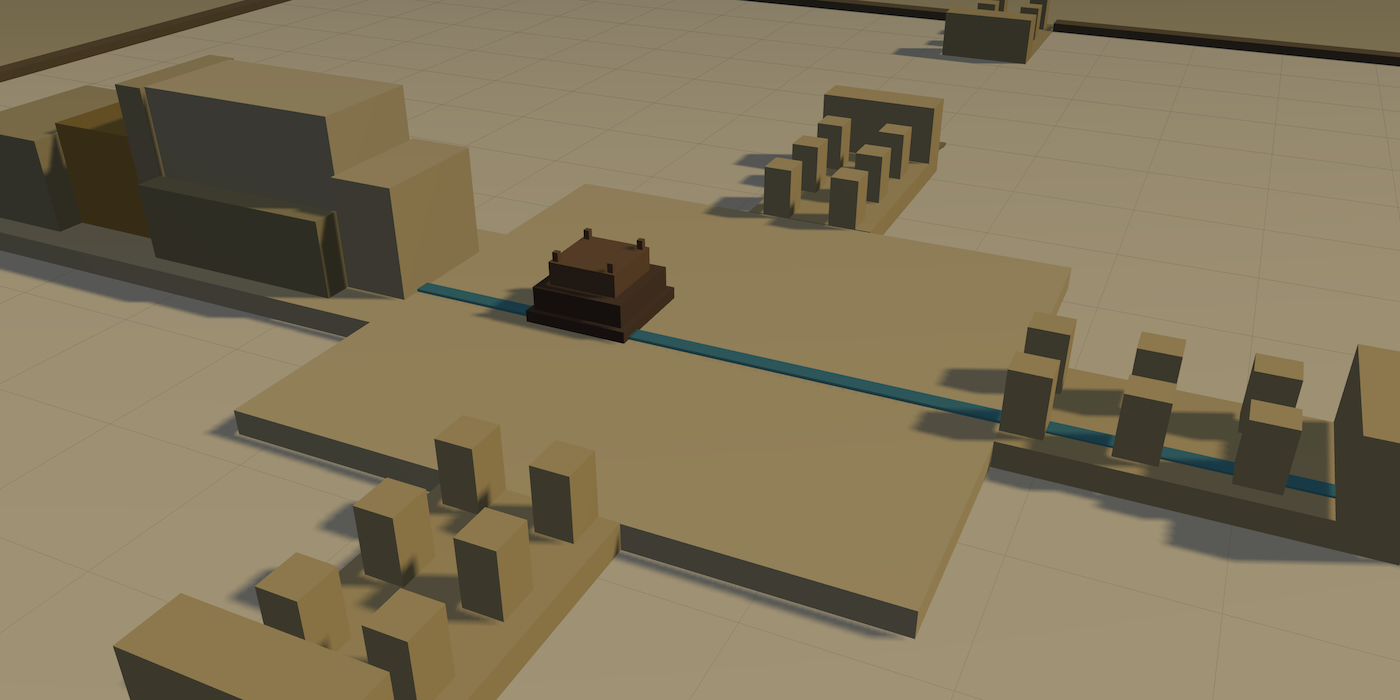
A separate, self-contained interactive model of the temple vision in
Ezekiel 40–42 (plus the sanctuary from ch. 41, the altar from ch. 43,
and the river from ch. 47) — built to the cubit measurements the text
actually gives, with citations for every structure and honest notes on
the handful of places the text leaves a height or a footprint
unstated. Drag to orbit, scroll to zoom, tap any structure for its
measurement and verse. Click the picture above to open it live in your
browser — or, if you’ve downloaded this folder, double-click
extras/ezekiel-temple.html directly; no server or install needed
either way.
Want to know how it’s built, or change something?
See DEVELOPMENT.md — the data pipeline, database schema, how the machine-learning connections are computed, how to extend it, and the tests.